What Size Should Images Be for a Website? (And How to Resize Them)
Big images slow your website down. Visitors get bored waiting and leave. Google notices too, because it doesn't like slow sites. The good news is that it's a quick fix.
What file size should website images be?
Aim for under 500KB per image. Under 300KB is even better. Anything bigger will slow your pages down, especially on phones.
What size should images be in pixels?
This matters just as much as file size. A photo straight off your phone or camera can be 4,000 pixels wide or more. Your website doesn't need that. Resize it first and the file size drops with it.
As a rough guide:
Full-width or header images: 1920 pixels wide (the standard 1920x1080 screen size)
Blog and content images: 1200 pixels wide
Portfolio and gallery images: 1500 pixels wide
Logos: around 500 pixels wide, saved as PNG or SVG so the background stays clear
Use JPG for photos and PNG for logos or graphics. If your platform supports WebP, it's smaller again.
How to resize images in bulk
Option 1: TinyJPG
Go to tinyjpg.com and drag your images in. It shrinks them for you. The free version limits how many you can do at once. The results can be a bit hit and miss, but it's a quick win.
Option 2: On a Mac
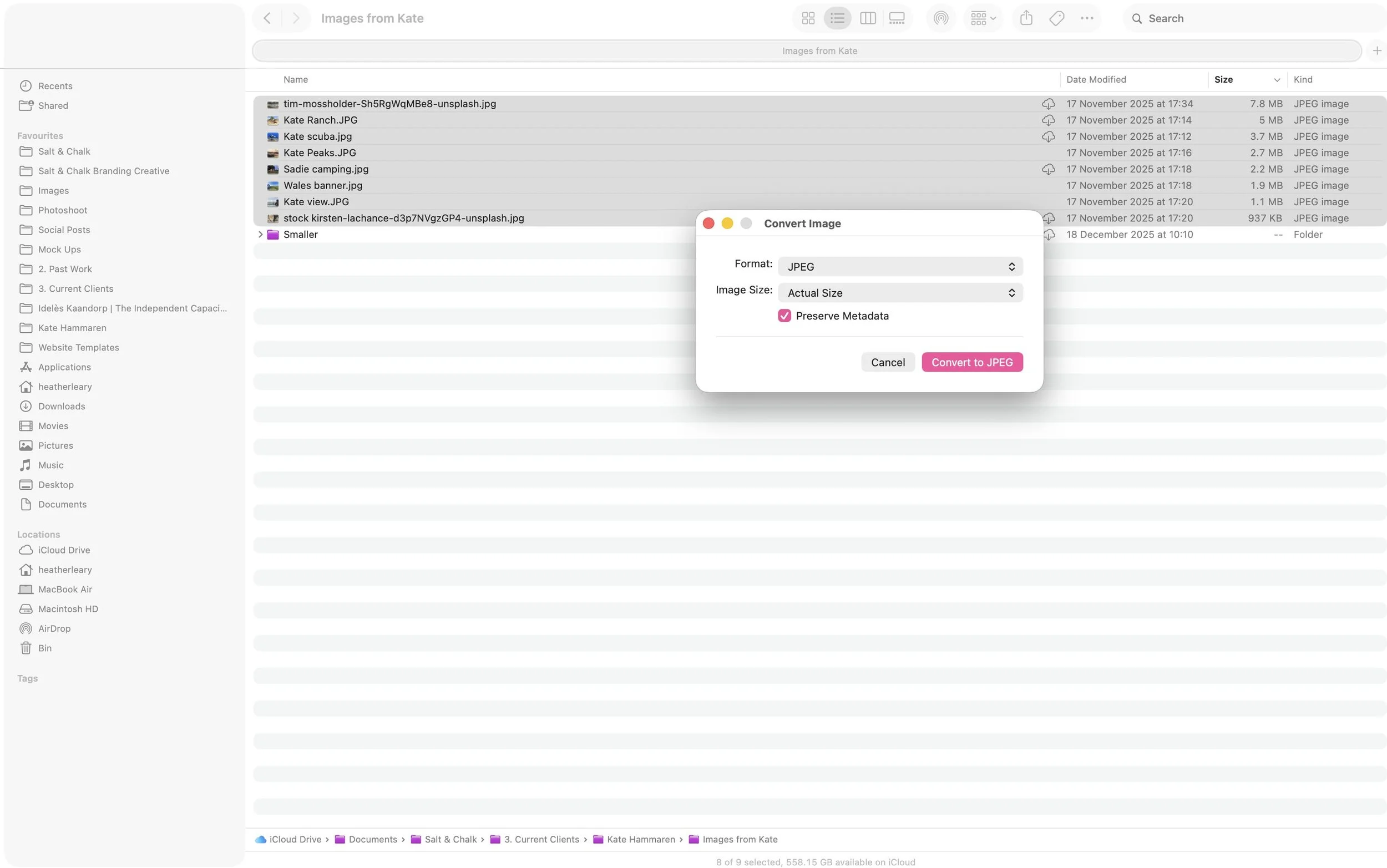
Select all your images in Finder.
Right-click and choose Quick Actions > Convert Image.
Pick JPEG and choose a smaller image size. (I usually find Large gives me the right size file.)
Click Convert to JPEG.
How to resize a single image on a Mac
Open the image in Preview.
Go to Tools > Adjust Size and set the width (for example, 1200 pixels). Click OK.
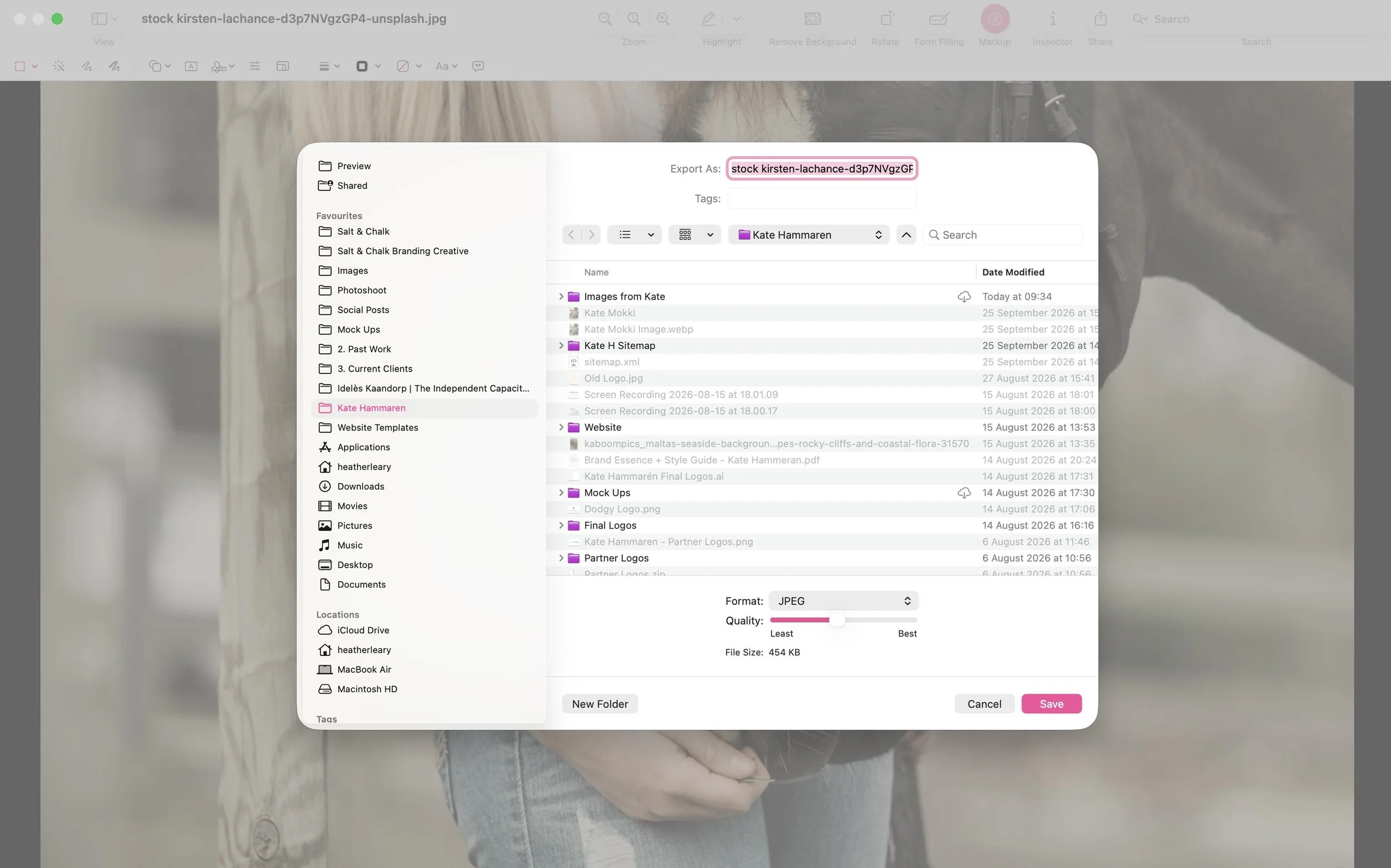
Go to File > Export.
Choose JPEG, then use the Quality slider. Preview shows you the file size as you drag it.
Stop when you're under 300–500KB and save.
Name your files before you upload
This one's easy to skip, but it helps your SEO. Google can't see your photos, but it can read the file name.
So instead of IMG_4829.jpg, try logo-design-pilates-teacher.jpg. Use lowercase and hyphens between words. Pick words people would actually type into Google.
While you're there, add alt text when you upload. That's a short description of the image. It helps with SEO and makes your site easier to use for people with screen readers.