How to Create a Lead Magnet and Add It to Your Squarespace Website
Wondering how to create a lead magnet and get it working on your Squarespace site?
A lead magnet is a freebie you give away in exchange for someone’s email address. It might be a checklist, a guide or a mini course. It’s one of the easiest ways to grow your email list. Once it’s set up, it works in the background while you get on with everything else.
Here’s how to set one up on Squarespace.
Step 1: Create a landing page for your freebie
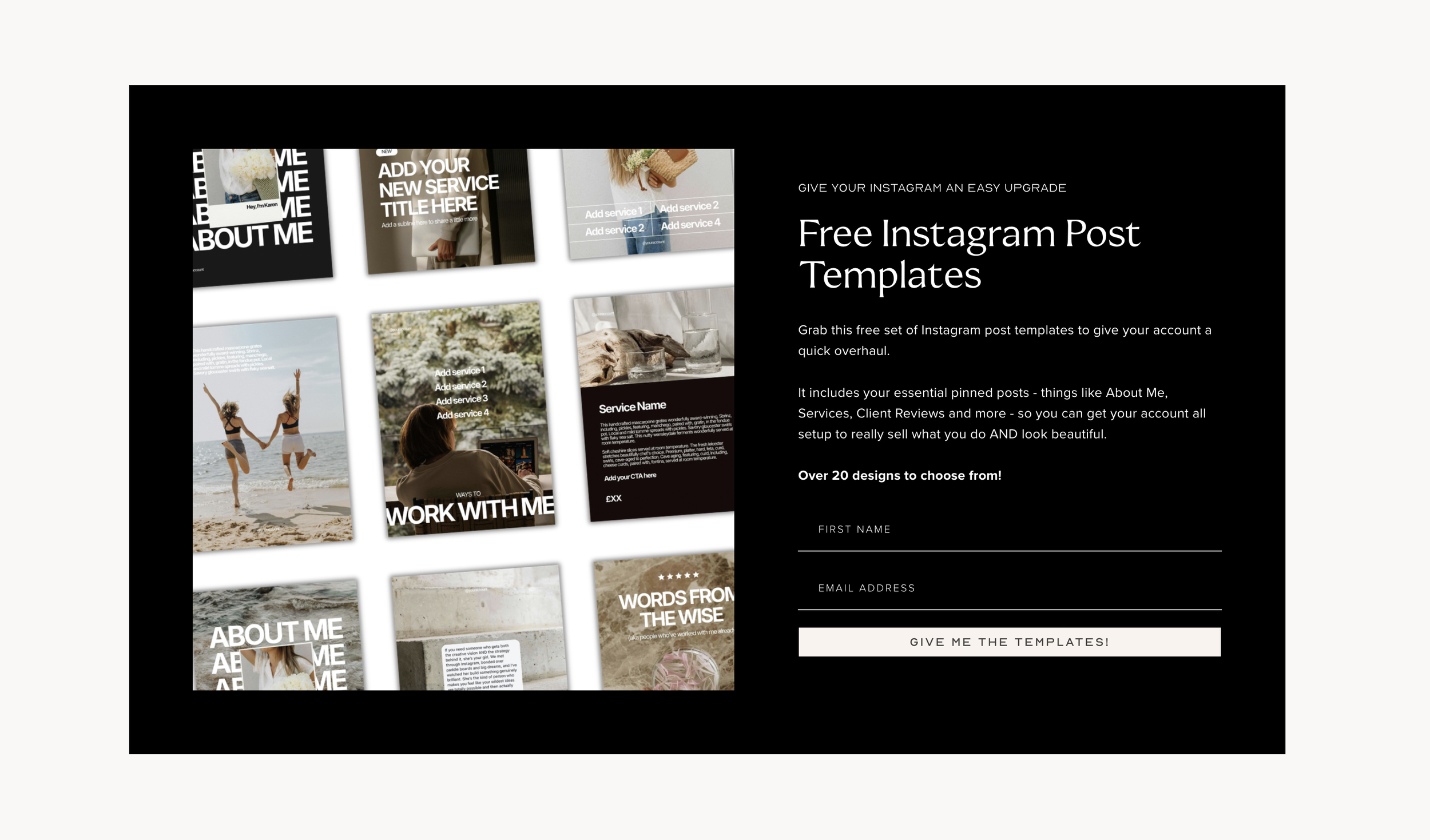
This is a page that does one job: getting people to sign up.
Keep it simple. Tell people:
What the freebie is
What they’ll get from it (the result, not just the format)
Who it’s for
Add an image of the freebie, such as a mock-up of the PDF or the first page of the guide. It makes it feel real. Then add a sign-up form asking for their name and email.
Tip: Give the page a clear URL, like yoursite.com/free-guide. It’s easier to share and easier to remember.
Step 2: Choose how you’ll deliver it
When someone signs up, they should get their freebie straight away. You’ve got two options.
Option 1: Use Squarespace Email Campaigns
If you don’t use an email provider yet, this keeps everything in one place.
Add a Newsletter block to your landing page.
In the block settings, connect it to a mailing list in Email Campaigns.
In Email Campaigns, go to Automations and create a welcome email.
Add a link to your freebie in that email.
Email Campaigns is a paid add-on to your Squarespace plan, so check the pricing before you commit.
The simplest version: if you just want to get started, use a Form block and add the download link to the message people see after they submit. They get the freebie straight away. You can add the email side later.
Option 2: Use your email provider (Flodesk, Mailchimp and so on)
If you already use Flodesk, Mailchimp or similar, build the form there instead. That way new subscribers go straight onto your list and into your welcome emails.
Here’s how it works with Flodesk:
Create an inline form in Flodesk.
When you embed it, Flodesk gives you two bits of code: a header code and an inline code.
In Squarespace, go to Settings > Advanced > Code Injection. Paste the header code into the Header box and save.
Go back to your landing page and add a Code block where you want the form.
Paste the inline code into the Code block and save.
Other email providers work in a similar way. They’ll give you an embed code to paste into a Code block.
Heads up: Code Injection isn’t on the cheapest Squarespace plan. You’ll need Core or above (or Business on the older plans).
Where your freebie file lives
Some email providers let you attach your freebie file straight to the email. Others don’t. If yours doesn’t, you’ll need somewhere to keep the file so you can link to it. You’ve got two options.
A delivery page on your website. Create a new page in the Not Linked section of Squarespace, so it doesn’t appear in your menu. Add a short thank you message and a button that links to the file. Then link to that page from your welcome email. You can also send people there straight after they sign up, by setting the form to redirect to that page.
Google Drive or Dropbox. Upload the file and copy the share link. Set it to “anyone with the link can view”, or people will be asked to request access. Then paste the link into your email.
Tip: Turn on “Hide from search results” in the delivery page’s settings. Otherwise people can find your freebie on Google without signing up.
Step 3: Set up your welcome emails
The first email delivers the freebie. If you want to go a step further, add a short welcome sequence after it. Two or three emails is plenty.
You could:
Introduce yourself and why you do what you do
Share a quick win or a tip that builds on the freebie
Point them to how you can help, whether that’s a service, a product or a call
This is where a subscriber starts to feel like they know you.
Step 4: Get people to your freebie
Your freebie only works if people see it. Link to it from:
Your link in bio. Make it one of the first links.
ManyChat on Instagram. Ask people to comment a word on your post, such as “GUIDE”. ManyChat then sends them the link in a DM automatically. It’s an easy way to turn a post into sign-ups without anyone having to go looking for your link in bio.
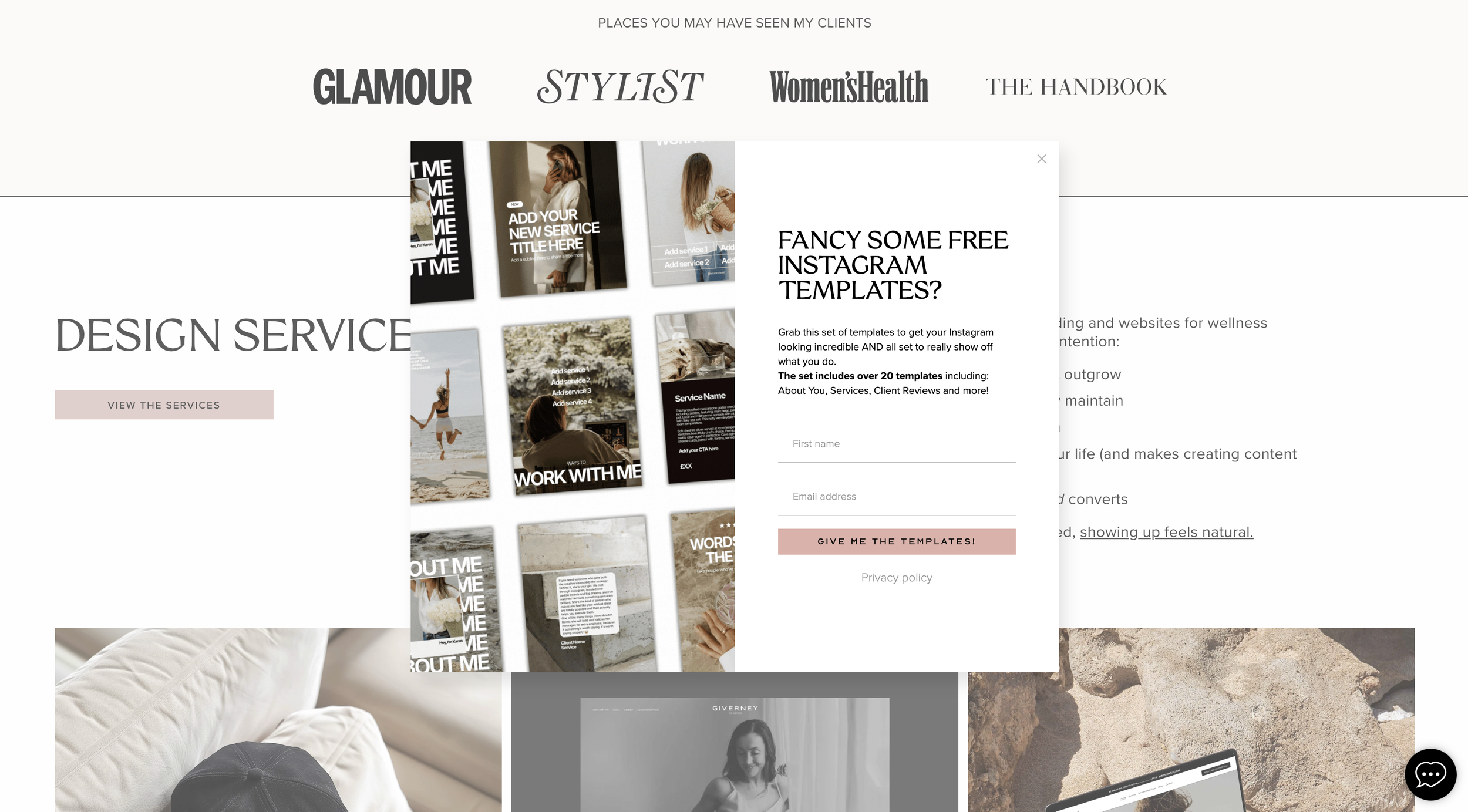
A pop-up on your website. Squarespace has a built-in promotional pop-up you can connect to Email Campaigns. If you use Flodesk, create a pop-up form there and paste its code into Code Injection.
Your homepage, blog posts and footer. Add a short section or button that points to the landing page.
Your emails and social posts. Mention it whenever it’s relevant.
The more places it lives, the more people find it.
Before you share it, test it
Sign up with your own email. Check that the form works, the email arrives and the link opens the right file. It takes two minutes and saves an awkward “the link’s broken” message later.